
Face Detection Missed Someone? Fix Gaps in Video Blur
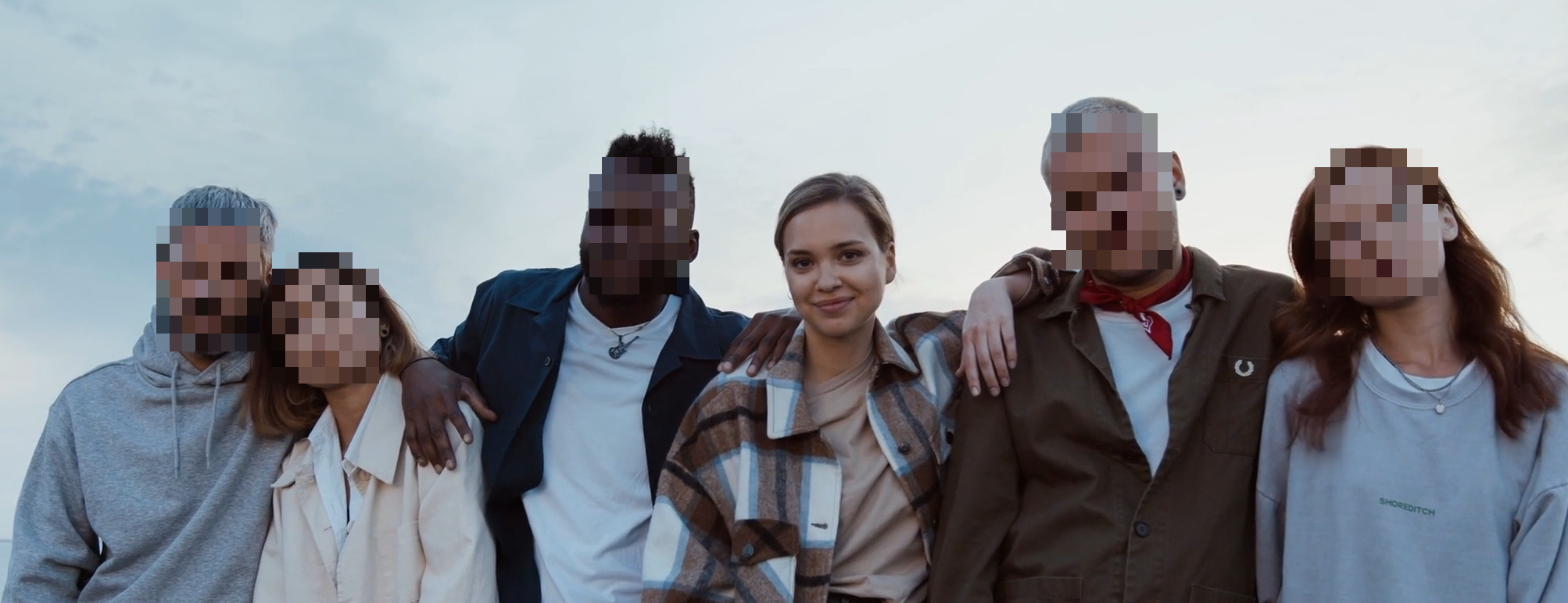
Compare face detection on the same scene
Test a short preview, separate missing coverage from weak masking, and review the full export.
Keep the diagnosis clear
If face detection missed someone, pause the original and the processed video at the same moment. Check whether the face has no mask, was deliberately left visible, or has a mask that is too weak. These are different problems, and they require different corrections.
Do not start by increasing blur strength repeatedly. Strength changes an existing effect; it does not create coverage where no face was detected.
Identify the problem you actually see
| Symptom | Likely area to check | Useful next action |
|---|---|---|
| A visible face has no mask | Detection coverage | Compare the same scene at a higher automatic detection sensitivity |
| A mask disappears during movement | Coverage across frames | Review entry, turns, obstructions and exit, including the frames between them |
| A selected person stays clear | Keep/blur decisions in the individual-face workflow | Check the relevant face groups and review their appearances |
| A mask follows the face but features remain recognizable | Effect strength or mask coverage | Adjust strength or try a solid covering, then inspect the edges |
| One person appears in several face groups, or a group contains different people | Identity grouping | Review every affected group before deciding whom to keep visible |
This table suggests where to look; it does not diagnose the exact cause from appearance alone. A shadow or scene cut can coincide with a miss without being its only cause.
Compare automatic detection on a short scene
Start with the video face-blurring tool and the clearest original clip available. Its initial free, watermarked preview starts automatically and covers up to 15 seconds.
- Locate the uncovered face. Use Scene to select an interval that includes it, plus the moments immediately before and after. Scene controls the preview; Trim controls the range you plan to export.
- Keep the effect and strength unchanged for the first comparison.
- Under Adjust, move Sensitivity from Standard to High.
- Select Apply & preview and wait for the new rendered result. Moving the control alone does not change the existing preview.
- Compare the same timestamps. Check whether the missing face now stays covered and whether unrelated regions gained unwanted masks.
- If coverage remains inconsistent, a controlled comparison at Very high may help. It can take longer and still miss difficult faces. Move to a manual fallback if the same problem remains.
Higher automatic sensitivity can inspect more frames. It is not a guarantee of complete detection, and it is separate from selecting which detected people remain visible.
Additional previews are limited, so keep one scene and change one variable at a time. Enlarging a compressed video does not restore facial detail missing from the original.
Correct weak masking separately
Once a mask stays over the face, inspect what remains visible through or around it. For Blur or Pixelate, adjust Strength and apply the preview again. The automatic face editor's Cover effect uses a solid mask over the detected region.
A solid mask only hides the area it covers. If it misses a forehead, cheek or another relevant part of the face, changing its appearance does not enlarge an incorrect detection into a verified result. Review the whole boundary and the frames around the problem.
For example, if High sensitivity removes a brief gap during a turn but facial features remain visible through the blur, the next test concerns strength or effect. That example explains the diagnosis; it is not a claim that High fixes every turning face.
Check individual-face decisions in Advanced editing
Use More options → Advanced editing when you need the separate studio for individual face choices or manual zones. This serves a different purpose from the automatic sensitivity control.
Before leaving a detected person visible, inspect their face-group thumbnails and appearances. A person may appear in more than one group, and a mistaken group may include someone else. Review all relevant groups rather than assuming one thumbnail represents every frame correctly.
If a group mixes people and you cannot safely separate the decision, keep the group covered while you investigate or use another verifiable edit. A face that is absent from the available detections cannot be selected into coverage merely by changing a keep/blur choice.
Selective editing is useful for deciding who remains visible. It is not automatically more accurate than the all-face workflow, and a grouping decision is not a substitute for checking mask coverage in the final video.
Use a manual fallback for an unresolved gap
For a predictable region, the face studio supports manual zones. A zone must cover the full sensitive region for the relevant time interval. Do not assume a fixed zone follows a moving face. Inspect the result when the person turns, moves or reappears.
If that cannot provide dependable coverage:
- Use a video editor with manual masks and tracking or keyframes.
- Remove the affected portion when it is not needed.
- Use a different clip or keep the recording private until the correction is verified.
For plates, switch to the plate-blur troubleshooting guide. Face groups and face sensitivity are not a way to repair license-plate coverage. For a still image, follow the photo workflow and missed-face fallback, which has different controls.
Review the difficult transitions and the complete export
Check a person from the first visible face to the last: entry into frame, changes of angle, temporary obstructions, scene cuts and exit. Include small background faces and reflections. Review the frames between checkpoints; if necessary, use a player or editor with frame stepping.
The short preview verifies only the part you actually inspected. Exporting the chosen range without a watermark requires sign-in and paid video credits; review pricing and the export panel before continuing. A new upload can require a separate paid export, so do not assume repeated uploads are free corrections.
Open the downloaded file and inspect the entire range, including any portion outside the preview. Also check voices, names and surrounding details using the video anonymization checklist. A completed job does not prove that every person is unidentifiable.
Frequently asked questions
Why does face blur flicker?
First determine whether the mask disappears, moves away from the face or merely changes appearance. Compare the affected frames against the original, then test coverage separately from effect strength. Motion, obstructions and difficult angles are possible contributors, not a confirmed diagnosis.
Can I fix a missed face by choosing the strongest blur?
No. A stronger effect only changes the regions that receive it. Test detection or use a verified manual correction for an uncovered face.
Does Advanced editing guarantee better detection?
No. It adds control over individual face decisions and manual zones. You must still inspect the detected groups and the resulting coverage.
Is it enough to review the first and last frame?
No. A face can become exposed during a turn, obstruction or scene cut between those frames. Review the full interval and inspect difficult transitions closely.